Posts

Showing posts with the label Android Apps

Featured Post

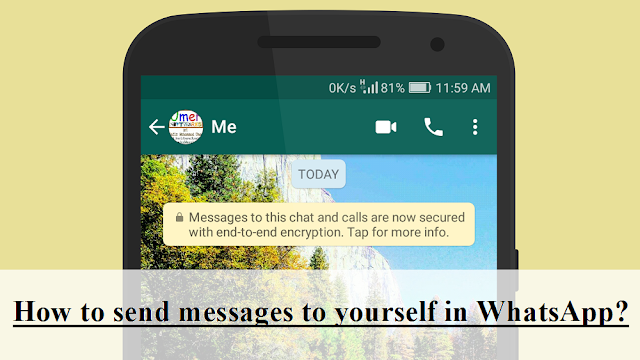
Send message to yourself in WhatsApp
Image
Sending a WhatsApp message to yourself can be helpful in some cases. Many people used to send SMS to their own number if they wanted to take a note of something. Some people also send an email to themselves to take a note of something. But sending a WhatsApp message to yourself is not straight forward. In this post, I am going to tell you how you can send a message to yourself in WhatsApp. Quick Method to Send Message to Yourself Download the " Click to Chat " application from Google Play Store. Open the app and enter your number. Click the open button and send the message. Different ways of sending a message to yourself Method 1: From Contacts This is the easiest method. It might not work on all devices. But the trick is to save your number in the contacts and then click the WhatsApp message button to send a message to yourself. Method 2: Using an app Download the " Click to Chat "  app from Play Store.  Open the app and enter y...

Chat Link by Umer Softwares

Image
Purpose of the App Sometimes you have to send a WhatsApp message to someone without the need of saving the contact on your phone. This app solves your problem. This app lets you enter the recipient's number and open the chat in WhatsApp with just a single click! There might be an occasion when you want to send a message to some of your friends without going through the pain of copy-pasting the message. This app helps you. Type in a message, hit a button, select chats and send. It is that simple. You can also create links to WhatsApp chats. Copy the links or share them wherever you want. Download You can download the apk from the button below: How to use Open a Chat To open a WhatsApp or WhatsApp business chat without saving the number in your contacts, enter the number in international format. The prefix is the country code or dialing code of the country and the number is the number of recipient. After entering the number, click the "Open in WhatsApp...

How to use Universal Copy?

Image
Purpose of the app You are using your smartphone. You want to copy something on the screen. You try to long press the text and copy that but you can't do it. This app takes that pain away. It allows you to select and copy text from the screen that you can't do with Android's default long press. Download You can search "Universal Copy" on the play store or click the following button to download or scan the following QR code from your phone if you are viewing this on PC. Usage 1. Soon after installing the app, open it and enable it by using the very first option. In the next dialog that appears, click OPEN SETTINGS . Find "Universal Copy" in the list of apps that appear. 2. Enable the permission. In the next dialog that appears, click OK . Universal Copy is activated successfully. 3. A notification will appear in the notification shade. Click the notification to enable copy mode. Now you can  tap anything on the screen  ...

Drive Link Manager by Umer Softwares

Image
Is this app for you? If you are the person who saves files in google drive to share with others, this app will help you a lot. Purpose of app When you enable link sharing for a file in google drive, you get a link for that file. That is the sharing link or view link. When someone opens that link, the file will be viewed in his browser or it will just say "No Preview Available". Then the person can click the download button to download the file. But you can use that sharing link to create a direct download link for the file. When a person opens the direct download link, the file will start downloading instead of viewing in the browser. This app can create direct download link by taking a sharing link from you and vice versa. This app will also save your links so that you can access them from the app easily instead of going to google drive and generating a link again. Download You can search the app by name "Drive Link Manager" on google play store. F...

Text Scanner - OCR app for Android

Image
What is OCR? Here's a tip: If you already know what OCR is, you can skip to the next section. For a computer, text and image are two different types of data. It processes text differently and image differently. Now if you have an image of some text, you might call it text and read it too being a human but the computer will consider it an image. It can not process it as text. Here is an example. Let's say that you are viewing a webpage in your phone's browser. You can select the text and copy that to share it somewhere. But if you take a screenshot of that and open the screenshot, it is no longer text. You can no longer select the text from that image and copy it. OCR stands for Optical Character Recognition and it is a process of converting text from images into real text so that the computer can process it as text. It will take an image as input. Use some artificial intelligence based mumbo jumbo algorithms to recognize the text present in that image. And give th...

Clip Stack - Clipboard Manager for Android

Image
Purpose of the app You copy data while using your android phone. When you copy some data, it is stored in the clipboard. But the problem is that, in many phones when you copy some other data to clipboard, the previous one is erased from the clipboard. This is where this app comes in. This app runs in background in your android phone and stores all data that you copy to clipboard. So, by using this app, you can store the data you copy to clipboard at a separate location and access it when needed. I have used some other apps also for the same purpose but in my opinion, this is the best. Download This app is called "Clip Stack" and can by downloaded from play store using the following button: Or scan the following QR code from your phone if you are reading this on PC. Use After installing the app, just open to let it start its operation. From now, it will run in the background and record all the data that you copy to clipboard. An important thing that...