Posts

Featured Post

Send message to yourself in WhatsApp
Image
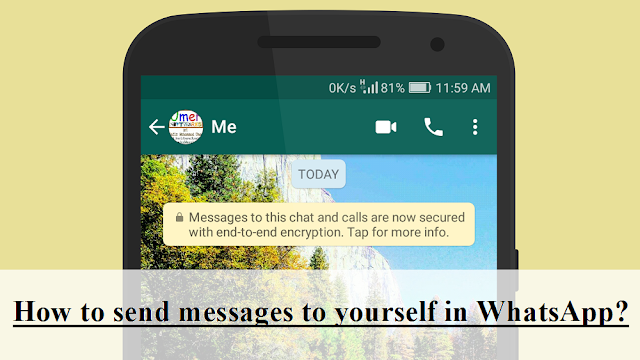
Sending a WhatsApp message to yourself can be helpful in some cases. Many people used to send SMS to their own number if they wanted to take a note of something. Some people also send an email to themselves to take a note of something. But sending a WhatsApp message to yourself is not straight forward. In this post, I am going to tell you how you can send a message to yourself in WhatsApp. Quick Method to Send Message to Yourself Download the " Click to Chat " application from Google Play Store. Open the app and enter your number. Click the open button and send the message. Different ways of sending a message to yourself Method 1: From Contacts This is the easiest method. It might not work on all devices. But the trick is to save your number in the contacts and then click the WhatsApp message button to send a message to yourself. Method 2: Using an app Download the " Click to Chat "  app from Play Store.  Open the app and enter y...

How to force any screen orientation in Android

Image
This app allows you to control the orientation of your screen manually and more powerfully. There are some cases when it is easy to use your phone upside down. This happens mostly when you want to use the phone while charging. Or may be your phone's headphone jack is on the top and you want it to shift to the bottom for sometime. This app proves handy in such situations.   The interface of the app is very simple. When you open the app, you get the option to manually change the orientation of your screen or set it to automatic. The automatic mode is'nt good. It just turn on the automatic rotation of your phone. So if you are using this app, adjust the orientation manually. For example, if you select reverse portrait, your screen will be turned upside down. *Using landscape and reverse landscape sometimes distort some apps that are programmed for portrait mode only. **If you accidentally close the app while you have changed the screen orientation from it, o...

WaveUp usage and review

Image
Our android phones come with various sensors that are used for some purposes by the phone. But there are third party apps available which allow you to use the sensors on your phone for some cool purposes. The one about which I am going to tell you, uses the proximity sensor. The proximity sensor is located on your phone at the front near the earpiece or the front facing camera. On some newer phones, it is located in that silly looking notch. Proximity sensor is used by the phone to turn the screen off while a phone call when you bring the phone near your ear. It avoids accidental touches on the screen when you are listening to a call. A proximity sensor actually senses when an object comes near it and sends feedback to the phone. The app I am going to tell you about is called WaveUp. This app uses the proximity sensor to turn on and off your screen. It will actually lessen the use of power button on your phone. It is handy if your power button gets damaged or of you just want ...

How to increase the volume beyond maximum in android?

Image
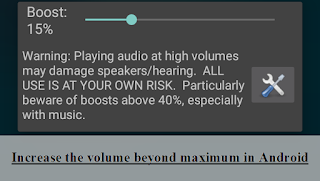
Our smartphone speaker works well in normal conditions but then comes a media file such as a video where the sound volume is too low even when you set the volume of of your smartphone to maximum. At this point, you can artificially increase the volume using some third party apps. One such app is Speaker Boost. The use of app is very simple. 1. Open the app and use the slider to boost the volume. 2. You can click on the settings button and then select "Settings" from the drop down enu for additional options. 3. The Settings menu looks like this. Show volume control: If you check this option, you will be able to control the system volume along with the boost from within the app. Notification bar: This determines when the notification appears in the notification bar. Non-Uniform boost: The option itself explains what it does. It is recommended to keep it on. Maximum allowed boost: This determines what is the maximum percentage upto which you ca...

Is Augmented Reality the future?

Image
Let's start with the fold-able phones. If you are on the internet _ youtube or facebook, you must have seen videos for flexible phones. Right? Samsung working on flexible phones. They even showcased a flexible phone. You could imagine a tablet that was a thin flexible display that could roll into a cylinder. You could imagine a phone that could unfold into a large tablet. Why did'nt foldable phones become a reality? Firstly, the concept was quite possible. Samsung's OLED display is flexible. It is being successfully used in Samsung and non-Samsung phones (such as the iPhoneX). Why did'nt flexible phones become a reality? Why? The answer lies in the question that what do companies want? Profit? Money? You are right. The companies want money. They would manufacture a product that would sell in market and generate them profit. Big companies have great sources to study the market trend to determine whether or not a product would sell and earn them profit. So flexible ph...

How do I determine if my Windows is 32 bit or 64 bit?

Image
1. Right click "My Computer" or "This PC" and select properties. (If you're in Windows 10, you can also press Windows Key + Pause/break) 2.  In the next screen that appears, you can see whether your Windows is 32 bit or 64 bit (See the screenshot below)

IMG2PDF usage and Review

Image
 Ever wanted to convert images to PDF right on your Android phone? If yes then I have found the right application for you. It is called IMG2PDF and it is available on Google Play Store for android devices for free. Usage: On the main screen you can find three buttons. Their purpose is shown in the screenshot below.  In the sidebar, the only usable feature is the settings.  In the settings, you find only two options. One is the password protection, which allows you to password protect your PDF files and the other is compression, which allows you to compress the images before putting them into the PDF files. Now let's talk about converting images to PDF using this app. 1. Click on the add button in main screen of this app. 2. Open any album and select as many images as you want. 3. Click on the done button once you have finished selecting images. 4. The images will be packed into PDF in the same order as you selected them. If you want to ch...

Word Counter by Umer Softwares

Image
Application name:  Word Counter Created by:   Hafiz MuhammadUmer Programming Language:  Java System Requirements:  Java Runtime Environment (jre) .  Download jre 8 from here.   Download jre 9 from here.   Download jre 10 from here Minimum jre version:  jre1.8.0_144 Downloads: Download .jar file. Compatible with Windows. Explanation:  This is  my   second GUI application in java. It counts the number of words, number of letters, number of digits and much more in a given text. It also stores the queries for later viewing. You can also choose not to save the queries. The history can be viewed later and deleted. Source code:  The source code of the application is available at: http://javawithumer.blogspot.com/2018/06/word-counter-source-code.html You may not copy, modify or redistribute it without prior permission from Hafiz Muhammad Umer (UmerSoftwares@gmail.com). The application itself can be distributed withou...